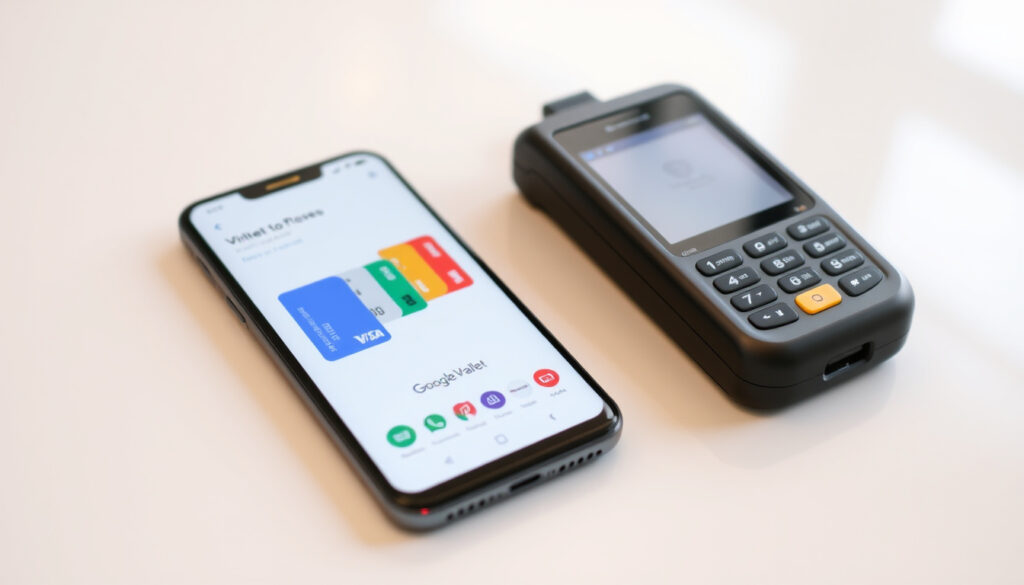
How to Use Google Wallet – Complete Setup and Usage Guide
Google Wallet transforms your Android phone into a digital hub for payments, passes, and everyday essentials. Whether you need to make contactless purchases, store boarding passes, or manage loyalty cards, this app consolidates everything into one secure location. This guide walks through setup, daily use, and troubleshooting to help you get the most from Google Wallet.
The application has evolved significantly since its original launch, now serving as Google’s primary digital wallet solution across Android devices, Wear OS watches, and select Fitbit products. Understanding its capabilities can simplify how you handle transactions and organize important documents on the go.
This article covers device requirements, step-by-step setup instructions, payment methods, available features, and solutions to common problems users encounter.
How Do I Set Up Google Wallet?
Getting started with Google Wallet requires a compatible device and a few quick configuration steps. The process takes just a few minutes once your phone meets the necessary requirements.
Download app, verify device meets Android 9.0+ requirement
Store payment cards, transit passes, loyalty cards, and digital tickets
NFC tap-to-pay in stores, online checkout integration
Android 9+, Wear OS, Fitbit devices (select features)
Before diving into the setup process, keep these key points in mind:
- Your device must run Android 9.0 (Pie) or later for full functionality
- NFC must be enabled in your phone settings for contactless payments
- Cards previously saved in Google Pay transfer automatically to the new app
- A screen lock is required for security before adding payment methods
- Pixel phones use the same setup process as other Android devices
- Not all features are available on supervised or managed accounts
| Feature | Supported | Notes |
|---|---|---|
| Contactless Payments | Yes | NFC-enabled devices with default payment app set |
| Credit/Debit Cards | Yes | Must support contactless payments; scan or enter manually |
| Loyalty Cards | Yes | Scan barcodes or enter membership details manually |
| Transit Passes | Yes | Available where supported; auto-import from Gmail |
| Boarding Passes | Yes | Flight tickets imported or added directly |
| Movie Tickets | Yes | Stored for quick access at theater entry |
| Virtual Cards | For eligible cards | Available after initial card setup |
| Digital Keys | Varies | Car and hotel keys depend on region and issuer |
Downloading and Installing the App
The Google Wallet app is available through the Google Play Store. Search for “Google Wallet” and tap the correct result from Google LLC. The app requires minimal storage space and updates automatically when new versions become available.
On Wear OS devices, the app installs alongside your watch software and syncs with your phone once paired. Not every feature available on Android phones transfers to wearables, so check the app listing for your specific device limitations.
Initial Configuration Requirements
After installation, the app walks you through initial setup screens. Your device must have NFC enabled for in-store payments to function. Navigate to Settings > Connected Devices > NFC to confirm it is turned on.
You will also need a screen lock configured on your device. This serves as a primary security layer before any payment information can be accessed. Google Wallet checks for this during setup and prompts you to add one if missing.
How to Add Cards and Make Payments with Google Wallet
Adding payment cards to Google Wallet follows a straightforward workflow. The app supports most contactless-enabled credit and debit cards, though your specific bank or card issuer must support the service.
Adding Credit and Debit Cards
Open the Google Wallet app and tap the “Add to Wallet” button at the bottom of the screen. Select “Payment card,” then choose “New credit or debit card.” You can scan the card using your phone camera, enter the details manually, or tap the physical card against your device in supported countries.
Once your card details are entered, you must save the information and accept your card issuer’s terms and conditions. The app typically prompts verification through your bank, which may involve receiving a code via SMS, opening your bank’s app, or confirming through another method your issuer specifies.
Cards that were previously saved in the Google Pay app migrate automatically when you install Google Wallet. This means you do not need to re-add payment methods you already used with Google’s older payment service.
Making Contactless Payments
Contactless payments through Google Wallet work wherever Google Pay is accepted. The technology uses NFC (Near Field Communication) to transmit encrypted payment codes to the terminal, keeping your actual card numbers hidden throughout the transaction.
To complete a payment, ensure your phone’s screen is unlocked, hold the device near the terminal, and wait for confirmation. You do not need to open the app first, though having it ready speeds up the process. You can verify your tap-to-pay setup through the app by navigating to your profile and checking the “Tap to pay setup” section.
Not all terminals support contactless payments even if they display the tap-to-pay symbol. If a payment fails, try a different terminal or ask the merchant if their equipment supports NFC transactions.
Removing Cards
You can remove cards from Google Wallet at any time through the app settings. Open the card you wish to remove, access the options menu, and select “Remove card.” Removing a card from Google Wallet does not cancel your physical card or affect its status with your bank.
Google Wallet Features and Everyday Uses
Beyond payments, Google Wallet serves as a centralized location for passes, tickets, and loyalty programs. This reduces the need to open multiple apps when you need to access important documents.
What Can You Store in Google Wallet?
The app stores a wide variety of items including payment cards, transit passes, flight boarding passes, movie tickets, loyalty cards, and event tickets. Some users also store car keys and hotel room keys where supported by issuers.
The platform imports items automatically from Gmail when relevant. Flight confirmations and event tickets detected in your email appear as prompts to save them to your wallet. This feature syncs with your Google Calendar and Assistant to surface passes when you need them, such as alerting you to an upcoming flight.
Google Wallet versus Google Pay
Google Wallet has replaced Google Pay for tap-to-pay functionality and digital storage. The older Google Pay branding still appears in some contexts, such as bank apps using “Add to GPay” buttons, but the unified Google Wallet app now handles in-store NFC payments, pass storage, and online checkout.
When you see “Buy with GPay” on websites or apps, this is Google’s payment integration powered by the same infrastructure. Cards stored in Google Wallet appear for these transactions without requiring separate management.
Transit and Travel Passes
Adding transit passes follows the same “Add to Wallet” workflow used for payment cards. Some transit agencies support direct integration, while others require you to photograph a barcode that the app converts into a scannable format.
Loyalty program cards can be added by scanning the barcode on the back of your physical card or entering your membership number manually. Points and membership status sometimes appear in Google Maps or Shopping interfaces when relevant locations are searched.
Troubleshooting Common Google Wallet Issues
Problems with Google Wallet typically fall into a few categories: card setup failures, payment recognition issues, and app performance concerns. Most issues have straightforward solutions.
When Card Setup Fails
If you encounter an error message like “Couldn’t finish card setup,” the issue often originates from your card issuer rather than the app itself. Contact your bank’s support team and mention you are trying to add the card to Google Wallet for tap-to-pay functionality. They may need to enable contactless payments on your account or verify your identity.
As a workaround, try adding the card through your bank’s app if it offers an “Add to GPay” option. Some cards work for online purchases through Google products even if they cannot complete tap-to-pay setup. You can also attempt adding the card again later, as issuer systems sometimes have temporary restrictions.
Regularly update Google Wallet through the Play Store to ensure you have the latest bug fixes and security improvements. Enable automatic updates or check manually after major Android version changes.
Payment Recognition Problems
When a terminal does not recognize your phone, first verify that NFC is enabled and that Google Wallet is set as your default payment app. Your screen must be unlocked for the transaction to proceed. Some users find that restarting their phone clears temporary NFC communication issues.
If payments continue to fail at a specific merchant, their terminal may require maintenance or updates. Try a different lane or ask whether their equipment supports contactless payments. At self-checkout kiosks, the NFC sensor location varies—experiment with different positions if your phone does not connect immediately.
Security and Verification
Google Wallet uses tokenization to protect your financial information. Rather than transmitting your actual card number, the app generates encrypted payment codes that change with each transaction. This means even if a terminal’s data is compromised, your card details remain secure.
Additional device-level protections include Find My Device functionality and remote erase capabilities. You can locate a lost phone, lock it remotely, or erase its contents through your Google account if necessary. Two-step verification on your Google account adds another layer of protection against unauthorized access.
Privacy controls within the app let you choose whether to share usage data across Google products. Review these settings during setup or through your account preferences to control what information is collected and how it is used.
Tap-to-pay functionality through Google Wallet is not available in all countries and regions. Card support and feature availability vary significantly depending on your location. Check local support documentation and confirm with your card issuer that international contactless payments are enabled before traveling.
The Evolution of Google Wallet
Google Wallet launched in 2011 as one of the earliest smartphone-based payment solutions. The original service focused on peer-to-peer payments and in-store contactless transactions, though adoption grew slowly due to limited merchant support and carrier restrictions on early Android devices.
In 2018, Google consolidated its payment efforts under the Google Pay brand, creating a distinct identity for the service across devices and markets. This period brought improved online checkout integration and broader bank partnerships.
The relaunch as Google Wallet in 2022 marked a strategic shift toward positioning the app as a comprehensive digital wallet rather than solely a payment tool. This change reflected growing consumer expectations for consolidating boarding passes, loyalty cards, event tickets, and other digital documents alongside payment methods.
Today, Google Wallet serves as the central hub for everyday digital essentials across Android, Wear OS, and compatible Fitbit devices. The platform continues expanding its feature set, with recent additions including enhanced transit pass support and digital key integration in select markets.
What We Know for Certain and What Remains Unclear
| Confirmed Capabilities | Areas of Uncertainty |
|---|---|
| Works on Android 9.0 and later | Full feature availability varies by country |
| Supports Wear OS devices | Which Fitbit models receive full support |
| Contactless payments via NFC | Exact launch timeline for new regions |
| Stores loyalty cards and passes | Complete list of supported transit agencies |
| Tokenization for card security | Specific digital key partnerships by region |
| Cards migrate from Google Pay | Future feature roadmap beyond current year |
The Broader Digital Wallet Landscape
Google Wallet exists within a competitive ecosystem of mobile payment solutions. Apple’s Wallet serves a similar function for iOS users, while Samsung Pay and other manufacturer-specific apps target their respective device owners. Each platform offers comparable core features but differs in available integrations, supported issuers, and regional availability.
The shift toward digital wallets reflects broader changes in how consumers interact with financial services. Contactless payments have become the default in many markets, accelerated by pandemic-related hygiene concerns but built on infrastructure investments that preceded the health crisis.
Looking ahead, digital wallets are positioned to expand beyond payments and passes. Digital identity documents, vaccination records, and professional credentials represent potential future additions as governments and organizations explore mobile verification methods.
What Sources Say About Google Wallet
“Google Wallet stores your cards, tickets, passes, loyalty cards, transit passes, flight boarding passes, movie tickets, and more for quick access via app, quick settings, home screen, or Google Assistant.”
— Google Wallet Help
“Available on Android 9.0+ (Pie), Wear OS, and Fitbit devices; not all features for supervised accounts.”
— Google Play Store App Listing
Summary
Google Wallet consolidates payment cards, transit passes, loyalty programs, and event tickets into a single app on your Android device. Setup requires Android 9.0 or later with NFC enabled and a screen lock configured. Adding cards involves scanning or manual entry followed by issuer verification, while payments rely on tap-to-pay technology wherever Google Pay is accepted.
The platform continues evolving, with recent updates expanding transit pass support and digital key integration in select markets. For those managing multiple cards and passes, the app reduces clutter and speeds up access during daily routines. Users encountering issues should first verify NFC settings and contact their card issuer when setup fails.
For related banking and payment guidance, see our articles on ANZ NZ Internet Banking – Login and Setup Guide and ANZ NZ Internet Banking – goMoney Login, Features and Guide.
Frequently Asked Questions
Does Google Wallet work internationally?
Tap-to-pay functionality is limited to supported countries and regions. The app itself is available wherever Google Pay operates, but specific features vary by location. Check with your card issuer to confirm international contactless payments are enabled before traveling.
How do I verify my identity in Google Wallet?
Identity verification occurs through your card issuer during the card setup process. Your bank may send an SMS code, prompt you to open their app, or use another verification method they specify. No separate identity verification process exists beyond these issuer steps.
How do I enable Google Wallet on Wear OS?
Google Wallet installs on Wear OS devices automatically when paired with your phone. Open the app on your watch, add your cards through the phone app if prompted, and use the watch face for contactless payments at supported terminals. Not all phone features transfer to the watch version.
Can I use Google Wallet for transit passes?
Yes, transit passes can be added through the Add to Wallet feature. Some agencies support direct integration while others require scanning a barcode. Transit passes imported from Gmail flight confirmations sometimes appear automatically as prompts.
Why is Google Wallet not working after an update?
After major updates, verify that NFC is still enabled and that Google Wallet remains your default payment app. Restarting your device often resolves temporary conflicts. If problems persist, check the Play Store for app updates or contact support for device-specific troubleshooting.
How do I remove a card from Google Wallet?
Open the specific card within the app, access the options menu, and select Remove card. This removes it from Google Wallet only and does not affect your physical card or close your account with the bank.
What happens to my old Google Pay cards?
Cards saved in Google Pay migrate automatically to Google Wallet when you install the new app. You do not need to re-add them manually. Any cards you previously used for payments should appear immediately after setup.
More related posts
 US Dollar to NZ Dollar: Current Rate & Travel Guide
 Where to Buy Labubu NZ: Official Stores, Prices & Fake Spotting
 5 Letter Words Using These Letters: Free Finder & Strategy Guide
 One Day Sale NZ: Biggest Events, GrabOne, and Shipping Guide
 ANZ to ASB Transfer Time: How Long It Takes | Guide
 Low Tide in Twilight: Ending, Pregnancy, Anime & Full Guide
 144 USD to NZD: Current Rate, Trends & Travel Tips
 Rotator Cuff Injury Test: At-Home Checks & Diagnosis