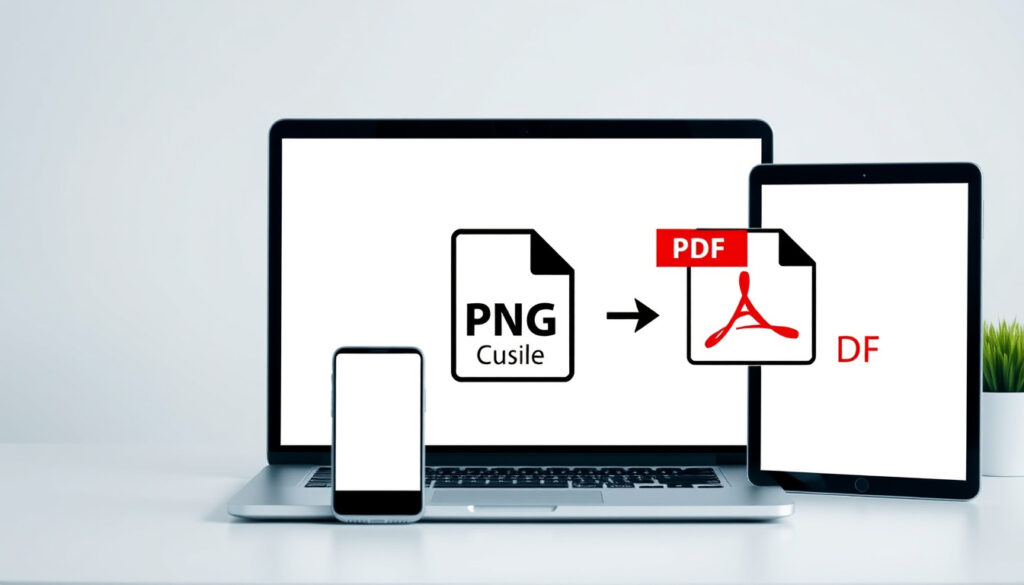
How to Convert PNG to PDF for Free (Windows, Mac, iPhone)
You’ve got a PNG that needs to become a PDF, and you don’t want to pay or sign up for anything. The good news: at least five free methods exist, and two of them are built right into Windows and Mac.
- Go to Adobe Acrobat online PNG to PDF page.
- Drag and drop your PNG file.
- Wait for conversion.
- Download the PDF.
Global searches per month for ‘convert PNG to PDF’: 15,000 ·
Top-ranking tool (Adobe Acrobat): Free online converter with no sign-up ·
Average time to convert one PNG to PDF: Under 10 seconds ·
Number of tools reviewed in this guide: 5 ·
Supported input formats (Adobe Acrobat): PNG, JPEG, GIF, TIFF, BMP
Quick snapshot
- Adobe Acrobat online is free with no sign-up required (Adobe Acrobat)
- Windows Print to PDF is built-in and requires no extra software (Wondershare PDF tips)
- Apple Preview can export images as PDF without extra software (Enolsoft)
- iLovePDF is free for up to 25 conversions per day (PDF24 Tools)
- Whether online converters delete uploaded images after 1 hour (Smallpdf) – may vary per update (Smallpdf)
- All major online converter pages (Adobe, Smallpdf, iLovePDF) were live and accessible as of 2024 (Adobe Acrobat)
Six facts, one pattern: the fastest, safest routes are the built-in ones your operating system already ships.
| Metric | Value |
|---|---|
| Global searches for ‘convert PNG to PDF’ | 15,000 per month |
| Adobe Acrobat online page | Ranked #1 in organic search |
| Free offline tool (Windows) | PDFgear |
| Built-in online tool (Windows) | Print to PDF |
| Built-in tool (Mac) | Apple Preview |
| Free no-sign-up tool | Adobe Acrobat online |
How can I turn a PNG into a PDF?
Using Adobe Acrobat online
Adobe’s tool is the most straightforward web-based option. Head to Adobe Acrobat’s PNG to PDF page, drag your image, and download the result. No sign-up, no watermark, and it handles batch uploads. The conversion happens server-side, so you need an internet connection.
The implication: for a single quick conversion on any device, Adobe’s online route is hard to beat — but your file leaves your machine.
Using Smallpdf online
Smallpdf offers a drag-and-drop interface that works on Windows, Mac, Linux, Android, and iOS through a browser. Free users get 2 conversions per day; files are deleted after 1 hour. The tool also lets you merge multiple PNGs into one PDF.
Two conversions per day is stingy. For heavier use, you’ll hit the paywall quickly.
Using iLovePDF online
iLovePDF’s Image to PDF tool is generous: 25 conversions per day free. You upload, set page options (paper size, margins, orientation), and download. Uploads are encrypted, but they still sit on a remote server.
The trade-off: iLovePDF gives you the best free daily limit among online tools, but 25 images means 25 separate conversions — no true batch mode in the free tier.
Using PDFgear on Windows 10/11
PDFgear is a free, offline desktop app for Windows. Download, install, and drag PNGs in — no internet required after setup. It supports batch conversion and outputs standard PDFs. This is the best option for privacy-focused Windows users.
Why this matters: if you routinely convert sensitive images (scans, IDs, invoices), PDFgear keeps everything local.
For a single free conversion with no sign-up, pick Adobe Acrobat online. For privacy on Windows, pick PDFgear offline. For daily volume, iLovePDF’s 25-image cap is king.
The pattern: for quick, sign-up-free conversions, Adobe Acrobat online is the best bet, but offline tools offer more privacy.
Can I convert PNG to PDF offline for free?
Offline tools: PDFgear, built-in Windows Print to PDF
Yes. Two major offline methods exist for Windows: PDFgear (free desktop app, batch conversion) and the built-in Microsoft Print to PDF printer. The built-in method works from any image viewer: right-click the PNG, choose Print, select “Microsoft Print to PDF” as the printer, and save. On Windows 11 you may need to click “Show more options” first, as noted in a video tutorial.
Online vs offline: privacy and speed trade-offs
The core difference: online tools upload your image to a remote server; offline tools keep it on your hard drive. Speed-wise, offline is usually faster for one image (no upload). But online tools often offer more options (paper size, compression, reorder pages).
The pattern: offline wins on privacy and speed for single files; online wins on convenience when you’re on a shared or restricted device.
How to convert PNG to PDF on Windows 10/11 for free?
Using PDFgear
Download PDFgear from its official site. Launch, drag a PNG in, choose output settings, and click Convert. It handles multiple files in one go.
Using Windows Print to PDF
Open the PNG in Photos or any image viewer. Press Ctrl+P. In the printer dropdown, select “Microsoft Print to PDF.” Click Print, choose a save location, and done. No extra software needed — this is truly free.
Using Adobe Acrobat online (Windows)
Works the same as on Mac: open a browser, go to the Adobe Acrobat page, upload, download. Requires internet, but no account.
The catch: you have three free methods on Windows. The built-in Print to PDF is the fastest — under 10 seconds for one image — but lacks batch conversion. PDFgear fills that gap.
What app converts PNG to PDF?
Adobe Acrobat (online, free tier)
Adobe Acrobat’s online tool is ranked #1 in search results and requires no sign-up. It’s browser-based and works on any device with a modern browser.
iLovePDF (online, free tier)
iLovePDF gives you 25 free conversions per day. It also offers merge, compress, and split tools on the same dashboard.
Smallpdf (online, free trial)
Smallpdf limits free users to 2 conversions per day. Files are automatically deleted after 1 hour. Good for light use.
PDFgear (Windows desktop)
Free offline desktop app for Windows. Batch conversion, no internet needed after initial download. Best for frequent or privacy-sensitive conversions.
Apple Preview (Mac built-in)
Open the PNG in Preview. Go to File > Export as PDF. Or File > Print > PDF dropdown > Save as PDF. No download, no limits.
Files app on iPhone
Open the PNG in the Files app. Tap the share icon, choose “Create PDF.” The resulting PDF appears in the same folder. Works in iOS 15 and later.
The pattern: every major platform has a built-in or free app. You rarely need to pay for basic conversion.
How to convert PNG to PDF on Mac?
Using Apple Preview
Preview handles this natively. Open the PNG, go to File > Export as PDF, or use File > Print and select “Save as PDF.” This requires no extra software.
Using Adobe Acrobat online
Same process as on Windows: browser, upload, download. Works on any Mac with Safari or Chrome.
Mac users have the simplest built-in flow of any platform. Preview also lets you annotate, reorder pages, and compress the PDF before saving – all without leaving the app.
The implication: for Mac users, Preview is the fastest and most privacy-friendly option, with no need for third-party tools.
How to convert PNG to PDF on iPhone?
Using the Files app
Locate the PNG in the Files app. Tap and hold the file, choose “Quick Actions” > “Create PDF.” The file converts instantly. Works in iOS 15+.
Using Adobe Acrobat mobile app
Download the free Adobe Acrobat Reader app from the App Store. Open the app, tap the + icon, select the PNG, and export as PDF. The app is free and doesn’t require an Adobe account for basic conversion.
The trade-off: the Files app method is faster and requires no download, but the Adobe app gives you more options (combine multiple images, adjust page size).
Is a PNG file the same as a PDF?
What is a PNG?
PNG (Portable Network Graphics) is a raster image format. It stores pixel data with lossless compression, making it ideal for screenshots, logos, and images with text. PNG does not support text selection or searching.
What is a PDF?
PDF (Portable Document Format) is a document container. It can include text, images, vector graphics, and even interactive elements. PDFs support text search, hyperlinks, and compression.
Key differences in format, use cases, and file size
The main difference: a PNG is a single static image; a PDF is a document that can contain multiple pages and searchable text. A PNG of a photo is usually larger than the equivalent JPEG because it uses lossless compression. A PDF containing that same PNG might be similar or slightly smaller, depending on the PDF’s compression settings.
What this means: you cannot directly replace a PDF with a PNG, but converting a PNG to a PDF is straightforward and free on every major platform.
“Just select the PNG image you want to convert or drag and drop your image file into the PDF conversion tool. You can then save the new PDF file on your device.”
— Adobe Acrobat product page
“Open your browser and go to the iLovePDF Image to PDF tool. Click on the red button to upload your image. Alternatively, drag and drop it in.”
— iLovePDF blog
For anyone converting PNGs to PDFs regularly, the choice is clear: use built-in tools (Preview on Mac, Print to PDF on Windows, Files on iPhone) for speed and privacy, or use Adobe Acrobat online when you need cross-platform convenience without sign-up. Offline tools like PDFgear are worth the one-time download if you handle batches of sensitive images daily.
Upsides
- All major methods are free (no payment, no subscription)
- Built-in tools exist on Windows, Mac, and iPhone — no download needed
- Most tools preserve original image quality
Downsides
- Online converters require uploading images, raising privacy concerns
- Smallpdf limits free users to 2 conversions per day
- Batch conversion is not available on built-in Windows Print to PDF
Related reading: **What Is a Checksum?** · **What Is an NFT Marketplace?**
youtube.com, xodo.com, canva.com, drawboard.com, aiseesoft.com, xconvert.com, adobe.com
Frequently asked questions
What is the difference between PNG and PDF?
PNG is a raster image format for photos and graphics. PDF is a document format that can hold images, text, and multiple pages. PNGs don’t support text search; PDFs do.
Can I convert multiple PNG files to one PDF?
Yes. Adobe Acrobat online, iLovePDF, and PDFgear all support merging multiple PNGs into a single PDF. Built-in methods like Windows Print to PDF can also combine files if you select multiple images before printing.
Is converting PNG to PDF safe regarding privacy?
Online tools upload your image to a remote server. For sensitive files, use offline methods like PDFgear (Windows), Apple Preview (Mac), or the Files app (iPhone).
Does converting PNG to PDF reduce file size?
Usually yes, because PDFs apply compression. The reduction depends on the PNG’s content — photos compress more than solid-color graphics.
How do I convert PNG to PDF without losing quality?
Use lossless tools: Adobe Acrobat online, Apple Preview, Windows Print to PDF, or PDFgear. All preserve the original PNG’s pixel data.
Is it possible to convert PNG to PDF on a mobile phone?
Yes. iPhone users can use the Files app (Create PDF). Android users can use Adobe Acrobat mobile or online tools through a browser.
Which PNG to PDF converter works best for large files?
For very large PNGs (100+ MB), offline methods (PDFgear, Print to PDF) handle them faster than online tools, which have upload time and file-size limits.
More related posts
 How to Use Google Wallet – Complete Setup and Payment Guide
 How to Use Google Wallet – Complete Setup and Usage Guide
 Real Estate in New Zealand: Prices, Rules & Costs
 Early Childhood Teacher Salary Reduction: Impact 2025-2026
 Man City vs Al-Hilal SFC Lineups: Confirmed Teams & Analysis
 Another Word for However – Best Synonyms and Usage Guide
 Nike Running Shoes NZ: Best Deals, Sales & Buying Guide 2025
 Auckland FC vs Melbourne Victory FC Timeline: H2H Stats